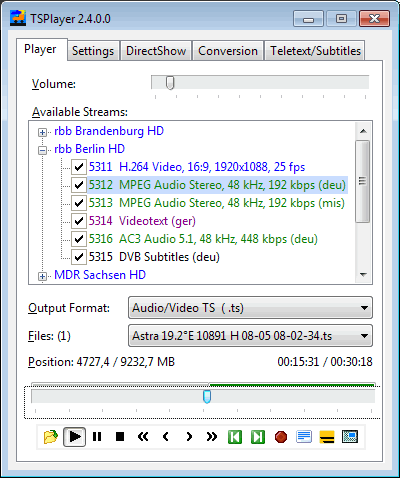
 The
player tab contains the main controls for playback and conversion:
The
player tab contains the main controls for playback and conversion:
The TSPlayer has been designed for easy playback of MPG- and TS-Files. Additionally it is able to join files or convert them to different formats, and provides simple cutting and splitting facilities. This chapter describes the main controls on the Player Tab.
Player Tab | Toolbar Buttons | Joining Files
The
player tab contains the main controls for playback and conversion:
 Volume:
Adjust
the volume by dragging the slider with the mouse. Alternatively you
may use the mouse wheel (also in full screen mode).
Volume:
Adjust
the volume by dragging the slider with the mouse. Alternatively you
may use the mouse wheel (also in full screen mode).
Available
Streams: After having opened a file, this field displays a tree
view showing all programs and streams that are contained in the
file. Double-clicking an entry starts playback of a program or
switches over to it. Different audio or subtitle streams within a
program can be selected in the same way.
The checkboxes select the streams that shall be exported when you cut or convert a file. Which streams are selectable depends on the output format (see below). A MPG file cannot contain teletext or DVB subtitles, for example. In case of MP2/AC3/AAC output only one audio stream is selectable.
If a file contains only one program, playback starts immediately. If a file contains multiple programs, the TSPlayer waits for you to select one of them in the Available Streams field by double-clicking it.

If the broadcasted PAT and PMT tables are missing in a TS file, the TSPlayer has no information about the assignment of streams to programs. Therefore it creates a program section „Unknown“ for them. If such a file contains two or more programs, the TSPlayer tries to determine which video and audio streams belong together by comparing their time stamps, and creates different „Unknown“ sections for them. This will work in most cases, thus enabling playback and conversion.
Output Format: Specifies the output file format for cutting
and conversion.
Video / Audio PS (*.mpg): The program stream is a common format for recording and playing MPEG2 videos. Many DVD players are able to play these files without conversion. You can create a MPG file out of a TS or another MPG file.
Video / Audio TS (*.ts): Transport stream is the broadcasted DVB format. It allows to record two or more channels at the same time in a single file, and additionally any kind of DVB data, like teletext and subtitles. You can create a TS file out of another TS file, e.g. in order to extract certain streams or to cut the file. MPG to TS conversion is not supported.
Audio (*.mp2 / *.ac3 / *.aac / *.mp3): Contains a single audio elementary stream. Can be created out of a TS, MPG or another MP2/AC3/AAC/MP3 file.
The Files Dropdown List displays the currently opened file(s)
and enables jumping to a specific file if more than one is opened.
The
Position
Slider shows
the current playback position. Move to another position by clicking
on it or by dragging the slider with the mouse. The green bar shows
the area that shall be exported resp. converted. If two or more
files are
opened,
the TSPlayer plays them as one big continuous file. The leftmost
slider position represents the beginning of the first file, and the
rightmost position the end of the last file (see Joining
Files section below).
The Toolbar at the bottom provides playback and conversion
control (see next section).
Video, teletext and subtitles are displayed in a separate Video Window, providing the following possibilities:
Double-clicking the Video Window or pressing [Ctrl]+[F] switches it
to full screen mode (and back).
Changing the window size by dragging the edges with the mouse will
keep the window aspect ratio. Dragging the corners allows to change
the window aspect ratio. The video aspect ratio will be preserved in
any case.
Right-clicking the Video Window or pressing [Esc] brings the
TSPlayer Main Window to the front, letting you access all controls
in full screen mode. Left-click the Full Screen Video Window or
press [Esc] to let the TSPlayer Window disappear again.
Tick
the “Full screen on top” checkbox on the Settings
Tab, if you want the Video Window in full screen mode to be
displayed in front of all other windows
Screensavers are disabled in full screen mode, so that they can't
interrupt playback. Additionally the TSPlayer prevents the Windows
energy settings from shutting the PC down while playback is going on
and from switching the display off while video is played.
contents | to the top | preceding chapter | next chapter
Since the buttons are intended for playback and conversion control, they partly work a bit different compared to other players.

If the TSPlayer Main Window is focused,
the following keyboard shortcuts are only available in combination
with the [Ctrl] key if the Player Tab is selected. If the Video
Window or PiP Window has the input focus you may use the keys with or
without [Ctrl].
 or [O] opens a dialog window for selecting the file(s) that shall be
played / converted. Alternatively you can open files by dragging and
dropping them into the TSPlayer window. This function is disabled
when a conversion takes place.
or [O] opens a dialog window for selecting the file(s) that shall be
played / converted. Alternatively you can open files by dragging and
dropping them into the TSPlayer window. This function is disabled
when a conversion takes place.
 or [Arrow Up] starts playback or switches it off, when clicked again.
This way of switching playback off can be used to to speed up a
simultaneous conversion considerably.
or [Arrow Up] starts playback or switches it off, when clicked again.
This way of switching playback off can be used to to speed up a
simultaneous conversion considerably.
 or [Space] or [Arrow Down] pauses playback and conversion. Click this
button again, or the play button, to continue.
or [Space] or [Arrow Down] pauses playback and conversion. Click this
button again, or the play button, to continue.
 or [S] stops playback and conversion, resets the file position to the
beginning. The positions of the conversion start/end markers are
preserved, however.
or [S] stops playback and conversion, resets the file position to the
beginning. The positions of the conversion start/end markers are
preserved, however.
 or [PgUp]: Jumps 1 minute (30 seconds) back.
 or [Arrow Left]: Jumps 10 seconds (1 second) back.
 or [Arrow Right]: Jumps 10 seconds (1 second) forward.
 or [PgDn]: Jumps 1 minute (30 seconds) forward.
The intervals indicated in brackets apply if you click the button with the right mouse button resp. if you hold the Shift Key down when using keyboard shortcuts. Keeping the mouse button pressed lets TSPlayer start cue play after a short time by auto-repeating the command. Same applies to the keyboard shortcuts, according to the keyboard repeat rate settings in the Windows control panel.
 or [F3]: Fixes the conversion start point at the current slider
position. The default start position is the current playback
position.
or [F3]: Fixes the conversion start point at the current slider
position. The default start position is the current playback
position.
 or [F4]: Fixes the conversion end point at the current slider
position. The default end position is the end of the file.
or [F4]: Fixes the conversion end point at the current slider
position. The default end position is the end of the file.
These two buttons are displayed in a „pressed down“ state, if the conversion start / end point is fixed and does not change with the playback position resp. the end of the file (which may also change in case of timeshift). The buttons enable rough cutting, which should not be expected to work very precisely. The actual cut may occur up to 1 second before or after the selected position.
 or [R] starts or stops conversion. The green line above the slider
marks the part of the file that will be converted. Starting a
conversion lets the Position Slider jump to the conversion start
point, if it is fixed. Playback and a simultaneous conversion can be
started / stopped separately at any time. Stopping both has the same
effect as clicking
:
The file position is reset to the beginning.
or [R] starts or stops conversion. The green line above the slider
marks the part of the file that will be converted. Starting a
conversion lets the Position Slider jump to the conversion start
point, if it is fixed. Playback and a simultaneous conversion can be
started / stopped separately at any time. Stopping both has the same
effect as clicking
:
The file position is reset to the beginning.
 or [V] switches the OSD (On Screen Display) teletext on and off. This
function is only available if a TS file contains teletext data. More
about this topic in the Teletext Tab
chapter.
or [V] switches the OSD (On Screen Display) teletext on and off. This
function is only available if a TS file contains teletext data. More
about this topic in the Teletext Tab
chapter.
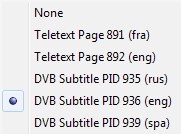
 or [U] opens a pop-up menu allowing to select subtitles or switch
them off. Supported are teletext, DVB, ISDB, ATSC and BluRay
subtitles. Please note that the TSPlayer can only display subtitles
if the selected video renderer is the VMR 9 or EVR (see DirectShow
Settings). The subtitles offered by the pop-up menu are detected
dynamically while playback is going on. They may not be available
until a playback position containing subtitle information is reached.
or [U] opens a pop-up menu allowing to select subtitles or switch
them off. Supported are teletext, DVB, ISDB, ATSC and BluRay
subtitles. Please note that the TSPlayer can only display subtitles
if the selected video renderer is the VMR 9 or EVR (see DirectShow
Settings). The subtitles offered by the pop-up menu are detected
dynamically while playback is going on. They may not be available
until a playback position containing subtitle information is reached.
 or [P] switches PiP (Picture in Picture) playback of a second video
stream in a TS file on/off. This function is available after playback
of the primary video stream has been started. Select the desired
secondary service or video/audio stream in the Available Streams
Treeview and click the PiP toolbutton. Alternatively right-click the
toolbutton or the PiP window (if it is already present) and select
the service resp. stream from the PiP popup menu.
or [P] switches PiP (Picture in Picture) playback of a second video
stream in a TS file on/off. This function is available after playback
of the primary video stream has been started. Select the desired
secondary service or video/audio stream in the Available Streams
Treeview and click the PiP toolbutton. Alternatively right-click the
toolbutton or the PiP window (if it is already present) and select
the service resp. stream from the PiP popup menu.
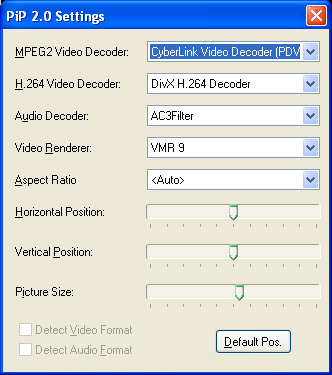 On
first usage the PiP Window does not display video, but lets the PiP
settings pop up, prompting you to select a video decoder, video
renderer and audio decoder. Do so, close the Settings Window and
repeat the selection of the desired program resp. stream.
On
first usage the PiP Window does not display video, but lets the PiP
settings pop up, prompting you to select a video decoder, video
renderer and audio decoder. Do so, close the Settings Window and
repeat the selection of the desired program resp. stream.
If the PiP Window is already open, the PiP popup menu offers additional functions:
PiP
Close (or clicking the PiP toolbutton): Closes the PiP Window.
Alternatively click the PiP toolbutton.
PiP
Audio (or clicking the primary or secondary video window with
the middle mouse button): Toggles between PiP audio and primary
audio.
PiP
Full Screen (or double-clicking the PiP Window): Switches the
PiP Window to full screen mode and back. When switching to full
screen mode the PiP Window automatically grabs audio.
PiP
Settings: Opens the PiP Settings Window.
You may resize the PiP Video Window Changing by dragging the edges with the mouse, which will keep the window aspect ratio. Dragging the corners allows to change the window aspect ratio.
contents | to the top | preceding chapter | next chapter
The TSPlayer allows to open two or more files for seamless playback or conversion to a single file. The files are handled and presented as if they were a single file. The displayed file size and duration is the added up size/duration of all files.
The TSPlayer only joins sufficiently
matching files. The determining factor is the first file. All
subsequent files must
have the same file extension.
contain all streams that have been detected in the first file with the same format, which means, the stream type, resolution and frame rate (video) resp. the sample rate (audio) must be identical.
Files that are not suitable for joining are rejected resp. not added to the file list.
There are different possibilities to open more than one file:
Select the files in the Windows Explorer. Drag & drop
them altogether on the TSPlayer main window or, if the TSPlayer is
not running, on the TSPlayer icon.
Drag & drop a folder or drive on the TSPlayer main window
or icon. The TSPlayer opens all media files contained in the
folder/drive, provided the format is supported and the files can be
joined with the first file. The TSPlayer does not browse
sub-folders, except if it detects a video DVD or BluRay structure.
In this case it tries to join the contained VOB resp. M2TS files.
Select the files in the file dialog that appears after
clicking the
button. Click Open or drag & drop the files on the main window.
These methods only provide limited control on the file order, however. Usually the file (one of several selected) dragged from an Explorer Window is the first one. The rest corresponds to the file order in the Explorer, wrapping around to the first selected file. A specific order can be achieved in the following way:
Dragging & Dropping files with the right mouse button on
the TSPlayer Main Window or Video Window adds them to the list (even
if playback is already going on). In contrast, dragging &
dropping files with the left mouse button closes and replaces
all open files.
Possibilities arising from joined files are:
Playback of movies consisting of several (unencrypted) VOB/M2TS
files and converting them to a single MPG/TS file.
Playback of splitted DVBViewer recordings and converting them to a
single file.
Joining different recordings from the same channel. Please note:
At the splice point the result will be discontinuous and not
standard compliant. It may cause playback issues, depending on
whether the player / decoder can cope with it or not. The Timestamp
Continuity Correction option on the Conversion
Tab prevents some of the issues.
Continuous playback of several MP3 files and converting them to a
single file. Please note: The MP3 format does not allow
perfect seamless joining. Mostly a short audible gap will remain.
Tags are removed on conversion. The TSPlayer accepts files with
differing bit rates and calculates an average bit rate in this case,
but the playback position will not be displayed accurately, and
seeking may yield unexpected results.